
Hier der link zum Linux Aion-Client (p7zip sollte installiert sein zum entpacken): click mich :)
1. GAME-CLIENT-INSTALLATION (einmalig am Anfang):
1. Den Game-Client Downloaden und irgendwo entpacken.
2. In den innersten Aion-Ordner gehen (wo die ganz vielen anderen Dateien und Ordner sind) und as Skript "INSTALL_AION_DEPS_LINUX.sh" ausführen.
3. Über das Contact/Impressum dieser Website nach einer VPN-Profile datei fragen. (Ich erstelle für jeden Spieler eine eigene VPN-Profil-Datei, und stelle diese zum Download auf einer unterseite bereit)
4. Erweitere Netzwerkeinstellungen / Advanced Networksettings über das Ubuntu startmenu öffnen und über den "Plus-Button" unten links im Window ein neues Netzwerk anlegen
4.2 Im dropdown statt "Ethernet" dann "ganz weit unten" folgendes auswählen: "Gespeicherte VPN-Konfiguration importieren / Import a saved VPN-Configuration" und die ovpn-datei dich ich zum download bereit gestellt habe auswälen
1. GAME-CLIENT STARTEN (immer):
1. Dem VPN beitreten / connection kontrollieren: (In Ubuntu gnome: Oben rechts auf das WLAN/Netzwerk-symbol klicken und kontrollieren ob der VPN Button farblich leuchtet, falls nicht VPN-Button clicken und VPN-Passwort eingeben das ich separat zur ovpn-Datei per email schicke) (In Ubuntu KDE_Plasma: unten links auf das Computer/Netzwerk-symbol klicken und kontrollieren ob der VPN Button farblich leuchtet, falls nicht VPN-Button clicken und VPN-Passwort eingeben das ich separat zur ovpn-Datei per email schicke)
2. In den innersten Aion-Ordner gehen wo zuvor das INSTALL...-Skript ausgeführt wurde NUN ABER ZUM STARTEN IMMER DAS "START_AION_LINUX.sh"-Skript benutzen WICHTIG: FUNKTIONIERT NUR WENN MAN IN MEINEM VPN IST !
Linux VOIP-Chat-Client (Optional - nur nötig wenn man voice chat haben will / direkt mit mir quatschen will. ACHTUNG relativ CPU-lastig. Empfehlung: später nur starten wenn man nen 12 Kerner und ne dedizirte Graka hat ;) / und/oder wenn man ingame schnell mit mir quatschen will): click mich :)
INSTALL ANWEISUNG/Instruction:
1. Den Client Downloaden und irgendwo entpacken.
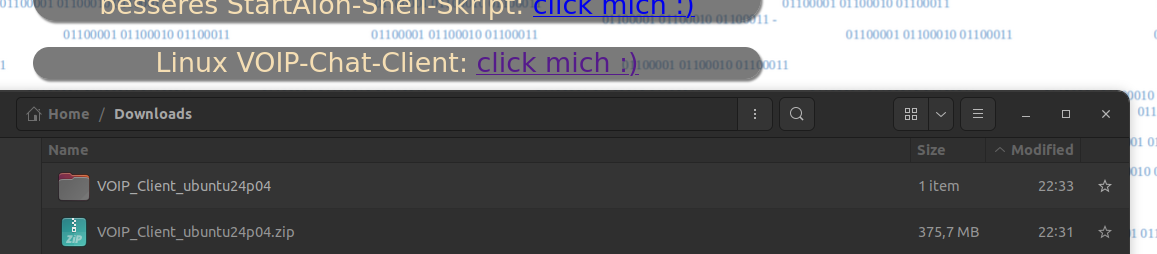
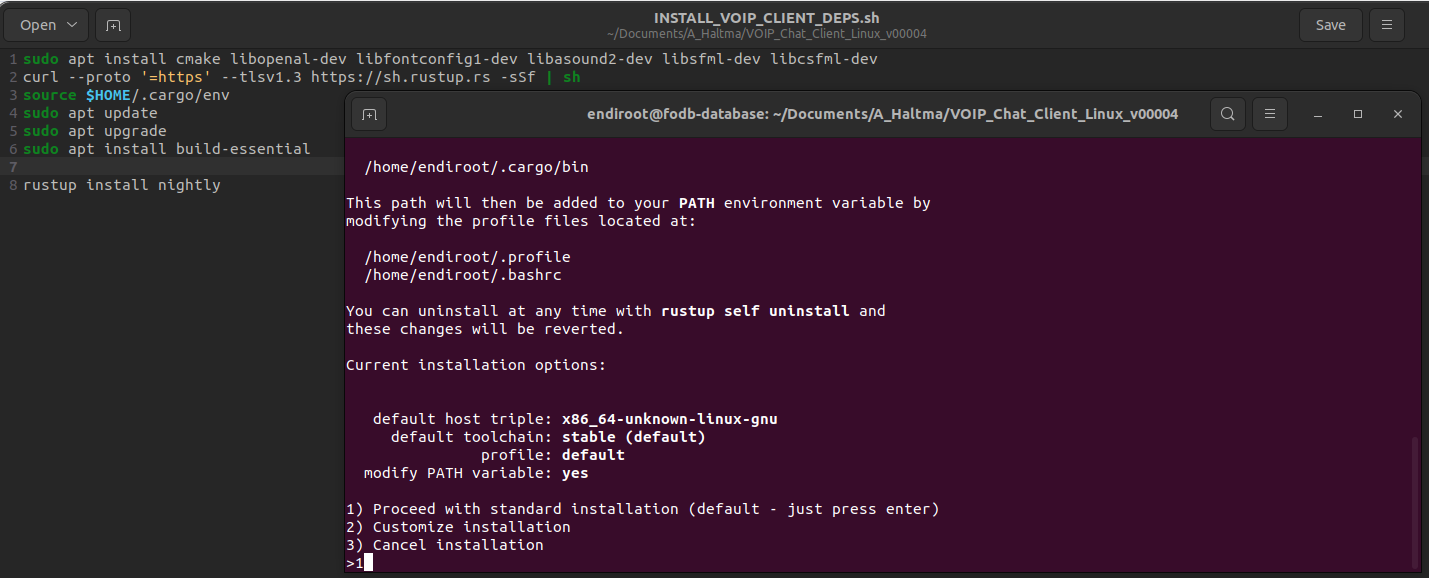
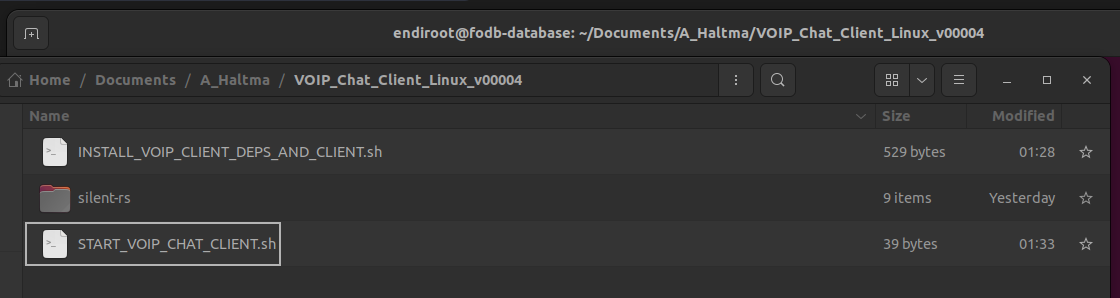
2. EINMALIG das script "INSTALL_VOIP_CLIENT_DEPS_AND_CLIENT.sh ausführen während der installation alles mit 'Y' bestätigen und an der einen Stelle die option '1' wählen"
3. Den Client mit dem Skript "START_VOIP_CHAT_CLIENT.sh" starten
4. Nickname auswählen server adresse Konfigurieren "aktuell: 10.200.0.2 und kein PW" und dann connecten
1. GAME CLIENT INSTALLATION (one‑time setup)
Download the game client and extract it anywhere.
Go into the innermost Aion folder (the one containing all the many files and subfolders) and run the script:
INSTALL_AION_DEPS_LINUX.sh
Use the contact/imprint page of this website to request a VPN profile file.
(I create a unique VPN profile for each player and provide it for download on a sub‑page.)
Open Advanced Network Settings via the Ubuntu start menu and create a new network connection using the plus button in the bottom left corner.
In the dropdown menu, instead of “Ethernet”, scroll all the way down and select:
“Import a saved VPN configuration”
Then choose the .ovpn file I provided for download.
2. STARTING THE GAME CLIENT (every time you play)
Join the VPN / check the connection:
Ubuntu GNOME:
Click the Wi‑Fi/Network icon in the top right corner and check whether the VPN button is highlighted.
If not, click it and enter the VPN password (which I send separately via email).
Ubuntu KDE Plasma:
Click the computer/network icon in the bottom right corner and check whether the VPN button is highlighted.
If not, click it and enter the VPN password (sent separately via email).
Go into the same inner Aion folder where you previously ran the INSTALL script —
but to start the game, ALWAYS use the script:
START_AION_LINUX.sh
IMPORTANT:
This only works while connected to my VPN
.